

Guide · How-to
Setting up a white-label booking portal
Eight steps to launch a branded booking portal at your-slug.liverybook.com: colours, logo, rate group, guest checkout, card collection and a test booking.
Updated
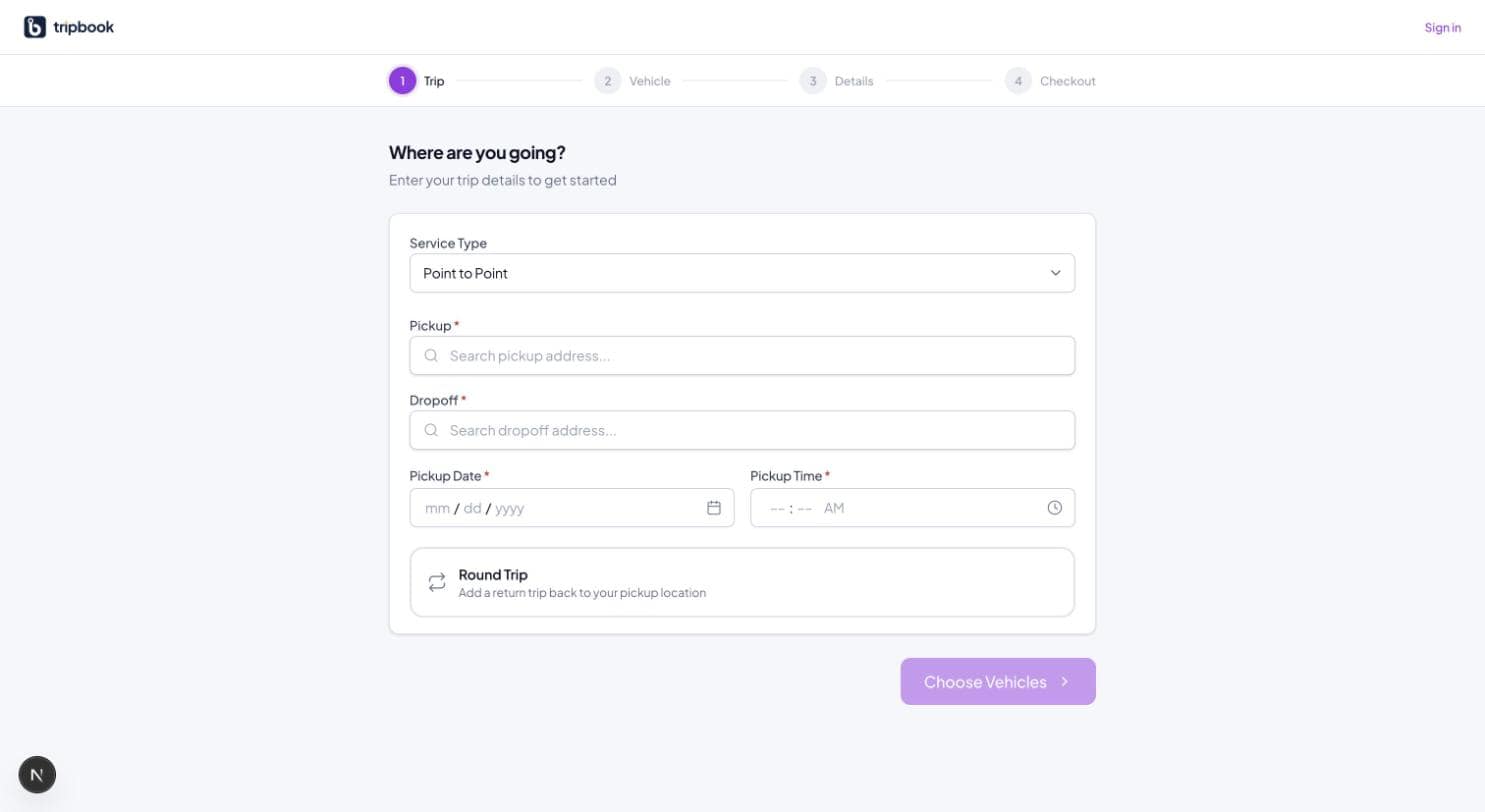
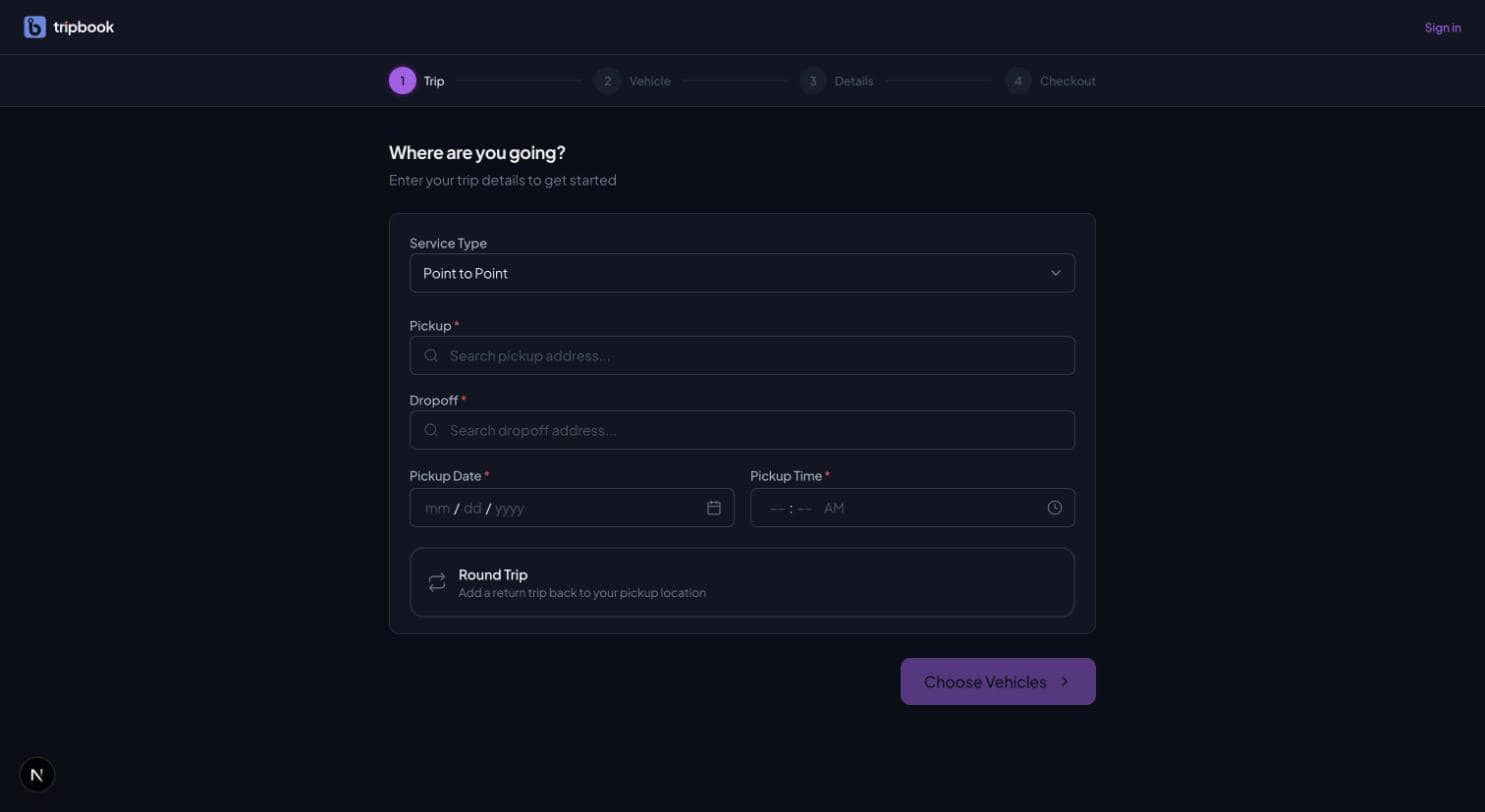
A white-label portal in liverybook takes about an hour to set up, and most of that hour is deciding which rate group the public should see. The portal lives at your-slug.liverybook.com, carries your name, logo and colours, and runs a four-step booking wizard (trip, vehicle, details, checkout) that prices from your rates and confirms automatically.
The steps below are in the order that avoids backtracking. The one most operators skip is step three, and without it the wizard shows "not available" to every visitor.
Pick the display name and colours
Open Settings, then Branding. The display name is what appears in the portal header, on the login and register screens, and in the confirmation email. Use the name customers know, which is not always the legal entity.
Set three colours: primary, secondary and accent. Primary carries the header and main buttons. Secondary is used for supporting surfaces. Accent is for the small things that need to stand out, such as the selected vehicle card in the wizard. Pick colours from your existing print material or website so the portal looks like it belongs to you. If your brand is one colour, use it for primary and leave the others close to neutral; a portal with three competing colours reads as a template.
Save and open the portal in another tab. The branding applies immediately, so you can adjust while looking at the result.
Set the logo and favicon
Branding takes two image URLs: the logo and the favicon. The logo appears in the portal header and in emails. The favicon is the small icon in the browser tab. Both are URLs, not uploads, so host the files somewhere stable (your own website is fine) and paste the addresses.
A horizontal logo on a transparent background works best in the header. For the favicon, a square PNG or ICO of your mark at 32 by 32 pixels is enough. If you have light and dark versions of your logo, use the one that sits well on your primary colour, since that is where it will be displayed most.
Choose the default rate group for public bookings
This is the step that makes the portal work. The wizard prices every public booking from the tenant's default rate group. If no default is set, the vehicle step has nothing to price with and shows "not available" for every class.
A rate group holds one or more rate lists with a seasonal schedule by month. For the portal, the sensible choice is your public or walk-up rates: the prices you would quote a stranger on the phone. Contracted corporate rates stay on their billing accounts and do not leak into the public wizard.
If you charge more in December or during event weeks, put those months in the rate group's schedule as a seasonal rate. The wizard applies the schedule by pickup date, so a customer booking in October for a New Year's Eve pickup sees the holiday price, and your office does not get a call in January about a surprise.
Set the default rate group in settings, then go back to the portal and step through to the vehicle page. Each class should now show a price.
Decide between guest checkout and accounts
The portal supports guest checkout: a customer can book and pay without creating an account. It also supports registration and login, and when a guest later registers with the same email, their earlier guest bookings are attached to the new account.
Leave guest checkout on unless you have a reason not to. Every field between a first-time visitor and a confirmed booking costs you some of them, and an account is a field. Corporate travel arrangers who book weekly will register on their own because it saves them typing. Airport customers who book twice a year will not, and should not have to.
The one case for requiring accounts is a portal you only intend for existing customers, where you want every booking tied to a known billing account from the start. If that is you, say so on the portal login page so a stranger does not try to book.
Turn on loyalty earning rules if you want them
liverybook has a per-tenant points program. Points are earned according to rules you define: a base rate on spend, bonuses for particular service types or vehicle classes, a signup bonus, and a referral bonus. Points expire first in, first out, redemption is capped per booking, and every movement is written to an append-only ledger.
Loyalty points are optional. If you turn them on, start with a single base spend rule and nothing else, run it for a quarter, and add bonuses once you can see what customers respond to. A program with six earning rules on day one is hard to explain in a confirmation email.
Portal customers see their balance after logging in. Guests earn nothing until they register, which is one more reason many of them eventually do.
Connect card collection
Card collection in the portal checkout runs on Stripe. Cards are collected and charged at checkout and the transaction lands in your liverybook ledger, where balance due is always recomputed from transactions. The same card collection is available to your office staff in the operator app.
Today the Stripe key for your tenant is configured by liverybook during onboarding, so if you went through a demo and setup call this is already done. Self-serve Stripe Connect onboarding is on the roadmap and not available yet. If your portal checkout shows an error at the payment step, this is the first thing to check with liverybook.
The portal also sends a payment receipt email after a successful charge, using your tenant's email provider (Postmark or SendGrid) if it has been configured, so the receipt comes from your domain.
Test a round trip with two vehicles
Before you publish, book something awkward. Open the portal as a guest, pick a pickup at an airport, turn on the round trip toggle, and set the return for three days later. On the vehicle step choose two classes with a quantity of two on one of them, so the booking has three vehicles across two legs.
Check four things. The price on each leg matches your rate group for that date. The confirmation email arrives, shows both legs in the pickup location's local time, and carries your logo and name. The booking appears on your run board as one booking with the right number of trip legs, each unassigned. And the test charge lands in your ledger, which you can then refund.
Then test the ordinary case: a one-way sedan, one vehicle, paid as a guest. If both pass, the portal is ready.
Publish the link
Your portal address is your-slug.liverybook.com. Put it on your website's "Book now" button, in your email signature, and in the confirmation emails your office sends by hand. Replace the phone number in your Google Business profile booking link with it if you want online bookings to come through the wizard rather than the office.
Keep the old booking method open for a month and watch which channel customers choose. Most operators find that evening and weekend bookings move online first, because that is when nobody is answering the phone.
The portal is described in full at /product/customer-portal. Custom domains (book.yourcompany.com instead of the liverybook subdomain) are not available yet; the portal runs on the slug address today.
Booked. Dispatched. Delivered.
Thirty minutes with your rate sheet and your fleet size.